The Easy Way to Add RGB Stars to Your Narrowband Images


In modern astrophotography image processing, software tools are evolving faster than ever. One that’s been generating a lot of buzz in the deep-sky community is the Seti Astro NB to RGB Star Combination Tool.
This utility bridges the gap between narrowband and RGB star data, making it easier than ever to create natural-looking deep-sky images with clean, colorful stars.
If you’ve ever captured a stunning narrowband image — only to be let down by oddly colored or bloated stars — you’ll understand why this tool is a game-changer.
In this article, I’ll explain how you can use the Seti Astro NB to RGB Star Combination Tool to improve the overall presentation of your narrowband images by creating synthetic RGB stars.
Why Combine Narrowband and RGB Star Data?
Narrowband imaging is incredible for cutting through light pollution and revealing rich details in emission nebulae. By isolating specific wavelengths (like H-alpha, OIII, and SII), you can capture deep, contrasty structures that broadband images can’t match.

Related Article: The Best Image Processing Software Options in 2026
The downside? Narrowband stars often look unnatural. They can have strange colors or halos, especially when combining multiple filters into a single image.
That’s where RGB star data comes in — it restores the natural color and appearance of stars, giving the final image a more authentic look. The Seti Astro NB to RGB Star Combination Tool streamlines this process so you can focus on the creative side of your astrophotography workflow.

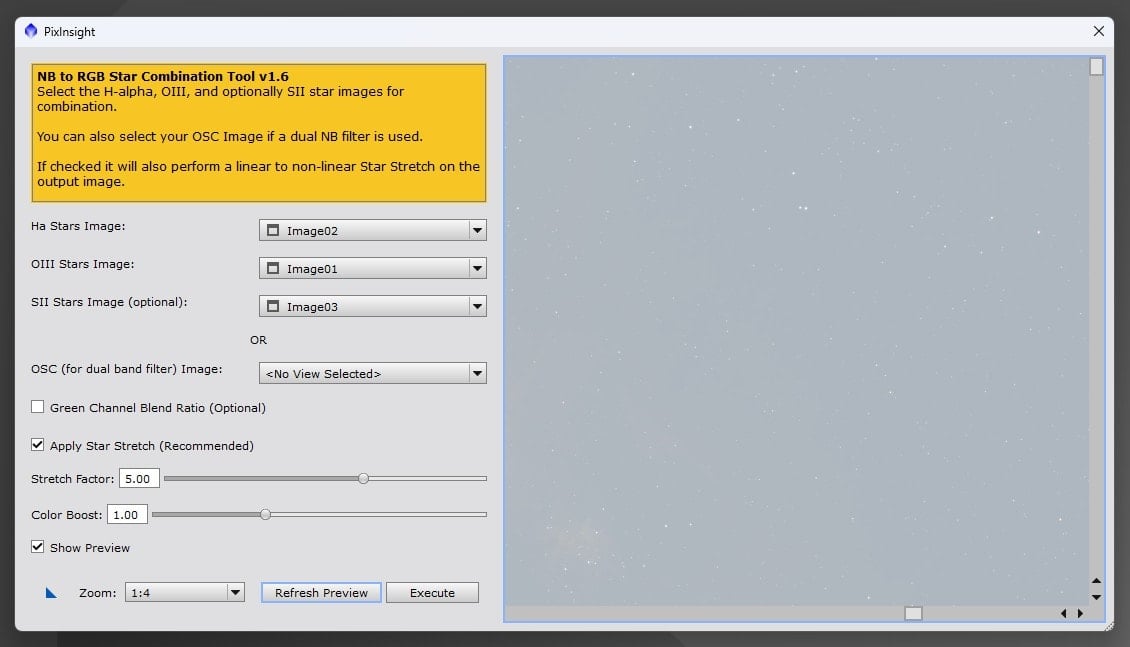
Here is the RGB star image that the Seti Astro NB to RGB Stars script created from my narrowband data. I can now apply this star layer to my starless narrowband (SHO) image in Adobe Photoshop using the ‘Screen’ adjustment.
How the Tool Works
In the past, replacing stars in a narrowband image with RGB stars meant a lot of manual masking, alignment, and careful blending in programs like Photoshop or PixInsight.
Before using this star blending script, I would use the white, colorless stars from the H-alpha filter to complete my narrowband images. While this is still an acceptable way to present a narrowband image, taking the extra step to capture (or create) accurate RGB stars is recommended.
The Seti Astro tool automates and optimizes this process:
-
Precise Alignment – Matches your RGB star field to the narrowband master, even if the frames were captured on different nights.
-
Star Separation – Uses advanced star-masking algorithms to isolate stars in both datasets without harming delicate nebula detail.
-
Seamless Blending – Replaces narrowband stars with their RGB counterparts, adjusting brightness and size for a natural fit.
-
Artifact Reduction – Minimizes halos, color fringing, and other blending issues.
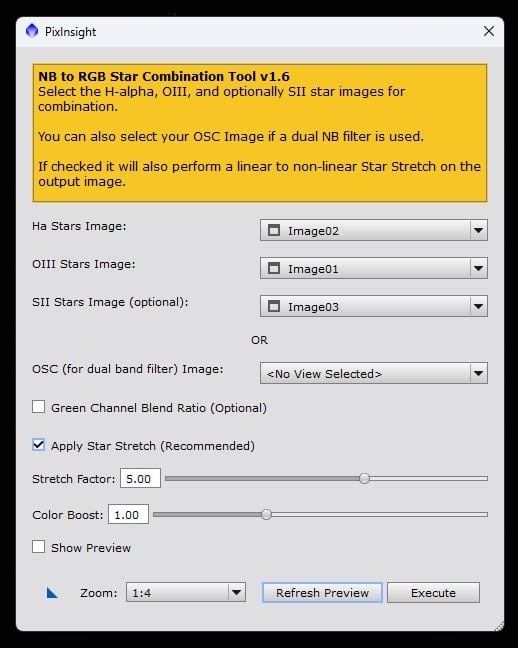
Compared to other processes I run on my computer, the NB to Star Combination script runs extremely fast (less than 10 seconds on a full-resolution data set). The speed of this process will depend on the specs of the computer you are using for astrophotography image processing.
Related Article: The Seti Astro Statistical Stretch: A Handy Free Tool for Astrophotographers
Benefits of the Seti Astro NB to RGB Star Combination Tool
If you are serious about your astrophotography projects (and you like the look of RGB stars), you’ll want to take the time to capture actual broadband, true color stars for your narrowband image projects. While I try to take this extra step whenever possible, I often find myself in situations where time and weather constraints prevent further shooting.
In this scenario, a narrowband star replacement tool like this helps me complete the image. In my opinion, blending RGB stars with a narrowband image creates a more well-rounded image.
-
Time Savings – Automates a tedious manual process.
-
Natural Star Colors – Produces stars that match what you’d see in broadband data.
-
Preserved Nebula Detail – Keeps faint structures intact while swapping star fields.
-
Consistent Results – Reliable output without hours of trial and error.

While I feel that this tool is most useful in a scenario where a monochrome camera and narrowband filters were used, it can also help restore the natural star colors in an image taken with a dual-band filter. This includes smart telescope data (usually, emission nebulae) captured using this type of filter.
Final Thoughts
The Seti Astro NB to RGB Star Combination Tool is more than just a convenience — it’s a precision solution for one of astrophotography’s most common post-processing challenges. By combining the detail of narrowband data with the look of RGB star fields, you can produce deep-sky images that are visually more appealing.
You can also use this tool on one-shot color images taken with a dual-bandpass filter (often grouped in with light pollution filters) to create more natural-looking stars. This simple step helps you create images that are more well-rounded with an improved presentation.
I want to thank the author of this incredibly useful script (Frank) for his contribution to the amateur astrophotography community. We are lucky to have access to such powerful, free tools. Clear skies!
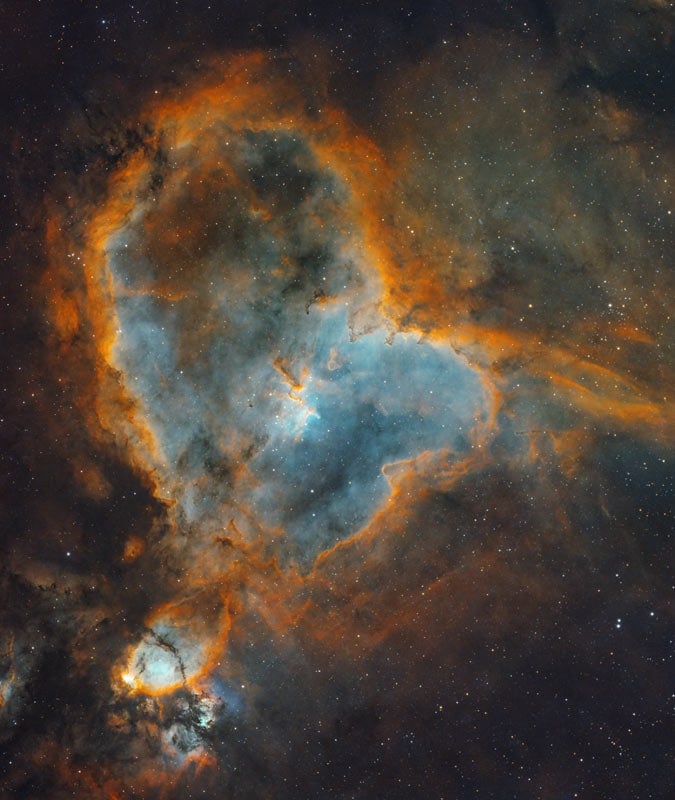
The Heart Nebula. Captured in SHO using a monochrome camera with stars using the NB to RGB script.

Trevor Jones is an astrophotographer and a valued member of the RASC. His passion is inspiring others to start their astrophotography journey on YouTube so they can enjoy the night sky as much as he does. His images can be seen in astronomy books & online publications, including the NASA Astronomy Picture of the Day.
Related Content:
- Narrowband Imaging: A Complete Guide for Beginners
- When To Start Using a Monochrome Camera for Astrophotography
- The Best Astrophotography Telescopes (My Top Choices)